Friday, 18 April 2014


☺☺☺☺☺☺☺☺☺☺☺☺

Find your Computer Uptime


A trick to know Our System Uptime.

   1. Go to Task Manager by pressing “Ctrl+Shift+Esc.
   2. Go to performance tab.
   3. In the system Information you can check out the uptime in the format 
Day : Hour : Minute : Second .

You can track your computer uptime easily now.


☺☺☺☺☺☺☺☺☺☺☺☺


☺☺☺☺☺☺☺☺☺☺☺☺

Find out How Healthy Your Battery is on Your Laptop


In windows 7 os we have an helpful feature to find out how healthy our battery in on your laptop.
1.Click on start button then type “cmd (without quotes), Right click on cmd from that popup menu select “Run as administrator” option.
2. Type powercfg –energy(without quotes)into the command prompt & press Enter.


3. The command enables tracing for 60 seconds & would collect all the data after observing the system behavior.
4. After analysis it would generate a report. And shows that report path also……Like it…..I point out that address with red color box ……


6. In the HTML file, scroll to the end till you get information like this:
This shows the battery ID, Manufacturer name, Chemistry, Design capacity and most importantly the last full charge.

☺☺☺☺☺☺☺☺☺☺☺☺


☺☺☺☺☺☺☺☺☺☺☺☺
Assign Keyboard Shortcuts for Programs


Application can be assigned a shortcut key in Windows 7. The application would launch when the combo of keys is pressed which you entered as the Shortcut Key for that application.
To create Shortcut key for any application in Windows 7:
1. Right-click the program icon.
2. From that popup menu select properties.
3. Select the Shortcut tab
4. Click in Shortcut key textbox
5. Enter the keyboard shortcut for that program.
6. Press OK to exit.
7. Use the Keyboard shortcut combo to launch the application. 


Similarly when I press “Ctrl+Alt+p”(without quotes) it will lunches Adobe Photoshop CS.


☺☺☺☺☺☺☺☺☺☺☺☺


Monday, 10 February 2014


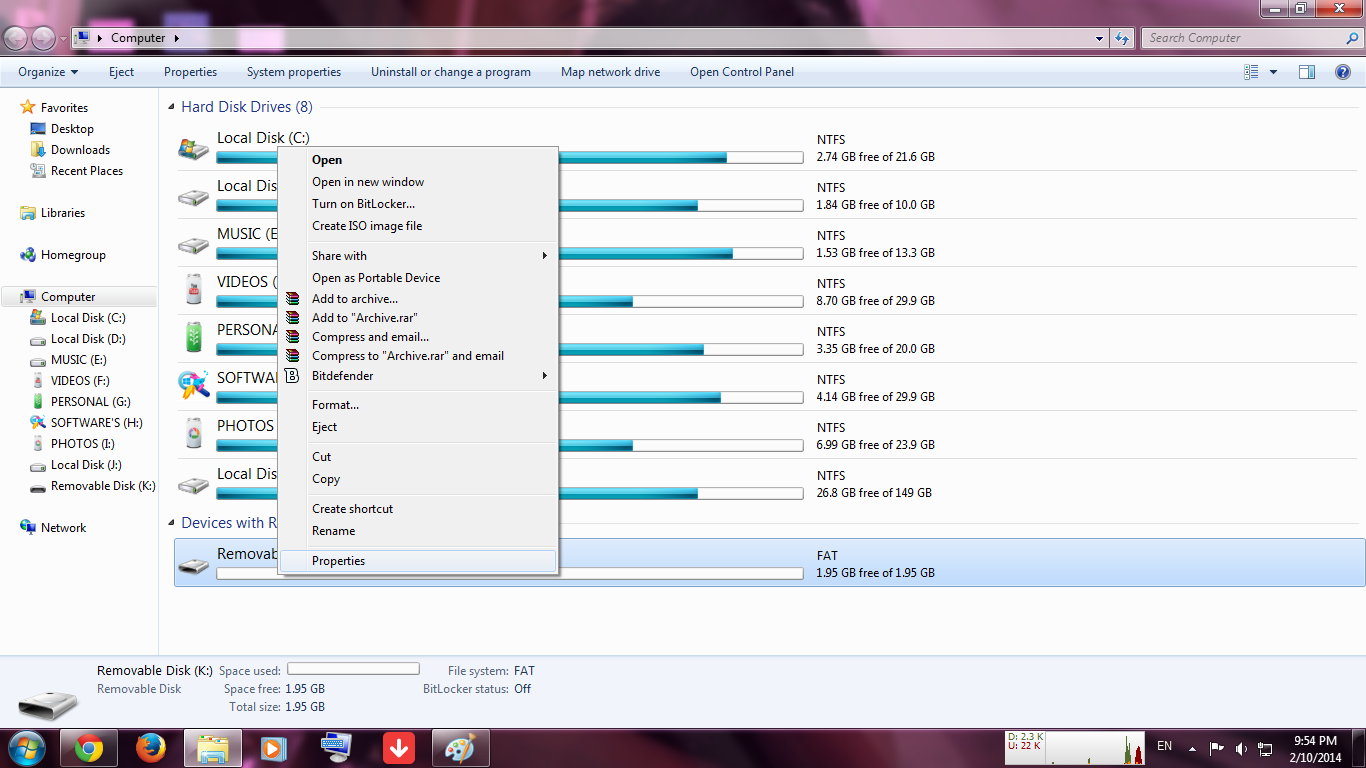
Trick to Use Pen drive as RAM


Step 1: Insert a empty pen drive. 


Step 2:Right click on Removable Disk than select properties.


Step 2: Click the "Ready Boost" Tap in properties window.


Step 3: In that "Ready Boost" Tap, choose the 2nd option "Dedicate the device to Ready boost" and allocate the maximum Memory


Step4: then click the "apply" and "ok" button..,
Now use pen drive as PC ram

HOW TO INSTALL WINDOWS 7 FROM USB

  1. Create an ISO file from the Windows 7 DVD If you already know how to create ISO images,

     
  2. Download the Windows 7 USB/DVD Download Tool from Microsoft. Once downloaded, execute the file and follow the installation wizard.

  3. Start the Windows 7 USB DVD Download Tool program, which is probably located in your Start menu or on your Start screen, as well as on your Desktop.
     
  4. On the Step 1 of 4: Choose ISO file screen, click Browse.
     
  5. Locate, and then select, your Windows 7 ISO file. Then click Open.

  6. Click Open.
     
  7. Click Next once you're back on the Step 1 of 4 screen.
     
  8. Click USB device on the Step 2 of 4: Choose media type screen.
     
  9. On the Step 3 of 4: Insert USB device screen, choose the flash drive or external hard drive you want to put the Windows 7 installation files on.

     
  10. Click the Begin copying button.
     
  11. Click Erase USB Device if you're prompted to do so on a Not Enough Free Space window. Then click Yes to the confirmation in the next window.

    Note: If you don't see this it just means that the flash drive or external hard disk you've selected is already empty.

    Important: Any data you have on this USB drive will be erased as part of this process.
     
  12. On Step 4 of 4: Creating bootable USB device, wait for the Windows 7 USB DVD Download Tool to format the USB drive and then copy the Windows 7 installation files to it from the ISO image you provided.

    You'll see a Status of Formatting for several seconds, followed by Copying files. This part might take as long as 30 minutes, maybe even longer, depending on which edition of Windows 7 the ISO file you have is from, as well as on how fast your computer, USB drive, and USB connection is.

    Tip: The percentage complete indicator may sit on one or more percentages for a long time. This does not mean anything is wrong.
     
  13. The next screen you see should say Bootable USB device created successfully.

    You can now close the Windows 7 USB DVD Download Tool program. The USB drive can now be used to install Windows 7.
  14. Change the BOOT settings. And set BOOT device priority to USB.
  15. That's all

MOST USEFUL SYMBOLS HOTKEY'S


Alt + 0153..... ™... trademark symbol
Alt + 0169.... ©.... copyright symbol
Alt + 0174..... ®....registered trademark symbol
Alt + 0176 ...°......degre­e symbol
Alt + 0177 ...±....plus-or­-minus sign
Alt + 0182 ...¶.....paragraph mark
Alt + 0190 ...¾....fractio­n, three-fourths
Alt + 0215 ....×.....multi­plication sign
Alt + 0162...¢....the cent sign
Alt + 0161.....¡..... .upside down exclamation point
Alt + 0191.....¿..... ­upside down question mark
Alt + 1..........☺.smiley face
Alt + 2 ......☻.....bla­ck smiley face
Alt + 15.....¤.....su­n
Alt + 12......♀.....f emale sign
Alt + 11.....♂......m­ale sign
Alt + 6.......♠.....s­pade
Alt + 5.......♣...... ­Club
Alt + 3.........♥... ­Heart
Alt + 4.......♦...... ­Diamond
Alt + 13......♪.....e­ighth note
Alt + 14......♫...... ­beamed eighth note
Alt + 8721.... ◄.... N-ary summation (auto sum)
Alt + 251.....√.....s­quare root check mark
Alt + 24.......↑..... ­up arrow
Alt + 25......↓...... ­down arrow
Alt + 26.....→.....ri­ght arrow
Alt + 27......←.....l­eft arrow
Alt + 18.....↕......u­p/down arrow
Alt + 29......↔... left right arrow

Digital information quantity measurements 


1 Bit = Binary Digit
8 Bits = 1 Byte
1024 Bytes = 1 Kilobyte
1024 Kilobytes = 1 Megabyte
1024 Megabytes = 1 Gigabyte
1024 Gigabytes = 1 Terabyte
1024 Terabytes = 1 Petabyte
1024 Petabytes = 1 Exabyte
1024 Exabytes = 1 Zettabyte
1024 Zettabytes = 1 Yottabyte
1024Yottabytes = 1 Brontobyte
1024 Brontobytes = 1 Geopbyte
1024 Geopbyte=1 Saganbyte
1024 Saganbyte=1 Pijabyte
Alphabyte = 1024 Pijabyte
Kryatbyte = 1024 Alphabyte
Amosbyte = 1024 Kryatbyte
Pectrolbyte = 1024 Amosbyte
Bolgerbyte = 1024 Pectrolbyte
Sambobyte = 1024 Bolgerbyte
Quesabyte = 1024 Sambobyte
Kinsabyte = 1024 Quesabyte
Rutherbyte = 1024 Kinsabyte
Dubnibyte = 1024 Rutherbyte
Seaborgbyte = 1024 Dubnibyte
Bohrbyte = 1024 Seaborgbyte
Hassiubyte = 1024 Bohrbyte
Meitnerbyte = 1024 Hassiubyte
Darmstadbyte = 1024 Meitnerbyte
Roentbyte = 1024 Darmstadbyte
Coperbyte = 1024 Roentbyte...